
Django Project Structure Explained: 6 Files Every Beginner Must Know
Django Project Structure Explained, The first time I ran django-admin startproject and looked inside the folder, I felt a small wave of panic. There were files I’d never seen before, names like wsgi.py and asgi.py, and nobody around to tell me what any of it meant. I clicked through everything, understood almost nothing, and just started building anyway.
Looking back, I wish someone had just sat me down and walked through the Django project structure file by file. So that’s exactly what I’m doing for you today.
What You See After Creating a Project
When you run:
django-admin startproject myfirstprojectDjango generates a folder that looks something like this:
myfirstproject/
    manage.py
    myfirstproject/
        __init__.py
        settings.py
        urls.py
        asgi.py
        wsgi.py
Yes, there are two folders with the same name — that confused me too. The outer one is just the container for your whole project. The inner one is the actual configuration package. Let’s go through each file.
When you run:
django-admin startproject myfirstproject .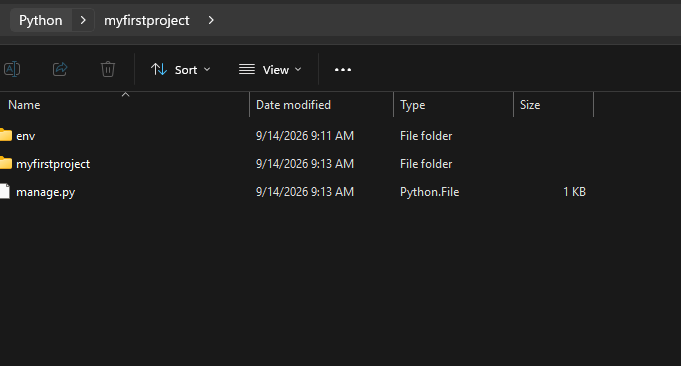
1. manage.py — Your Command Center
This is the file you’ll touch the most. Every time you run a server, create an app, or apply a migration, you’re running a command through manage.py. I think of it as the remote control for the entire project.
python manage.py runserver
python manage.py startapp blog
python manage.py migrate
You never really need to edit this file — just use it.
2. settings.py — The Brain of the Project
If manage.py is the remote, settings.py is the brain behind everything. This is where you configure:
- Installed apps (
INSTALLED_APPS) - Database connection details
- Time zone and language
- Static and media file paths
- Security settings like
SECRET_KEYandALLOWED_HOSTS
Whenever I add a new app to a project, this is the first file I open, right after startapp. Forgetting to register your app here is one of the most common beginner mistakes — I’ve done it more times than I’d like to admit.
3. urls.py — The Traffic Controller
This file decides what happens when someone visits a URL on your site. By default, it only has one route — the admin panel:
python
urlpatterns = [
    path('admin/', admin.site.urls),
]
As you build out your project, you’ll add more paths here, or better yet, connect them to separate urls.py files inside each app. That keeps things organized once your project grows past a handful of pages.
4. wsgi.py — For Traditional Servers
WSGI stands for Web Server Gateway Interface. Honestly, as a beginner, you don’t need to touch this file at all. It matters when you’re deploying your project to a live server that doesn’t support asynchronous requests — think traditional hosting setups.
5. asgi.py — For Modern, Async Servers
This one’s newer, and it exists to support asynchronous features — things like WebSockets or real-time chat apps. Again, you won’t need to edit this early on, but it’s good to know it’s there for when your projects get more advanced.
6. init.py — The Quiet One
This file is usually empty. Its only job is to tell Python that the folder it’s sitting in should be treated as a package. You’ll probably never open it, but don’t delete it either.
What Happens When You Create an App
Once you run python manage.py startapp blog, Django adds a new folder with its own set of files:
models.py— where you define your database tablesviews.py— where you write the logic for what shows up on a pageadmin.py— where you register models to appear in the admin panelapps.py— configuration for the app itselfmigrations/— a folder that tracks database changes over time
This app-based structure is one of the things I genuinely appreciate about Django. Each app is meant to handle one specific feature, so your project doesn’t turn into one giant tangled file as it grows.
Why This Structure Actually Matters
When I started out, I treated all this as boilerplate I could ignore. But once I began building bigger projects, understanding where each piece lived saved me so much debugging time. If something breaks with URLs, I know to check urls.py. If a new app isn’t showing up, I know settings.py is the first place to look.
That kind of muscle memory only comes from actually knowing what each file does, not just copying commands from a tutorial.
A Quick Tip From Experience
Don’t try to memorize every file’s purpose in one sitting. I didn’t. I learned this structure slowly, by breaking things and figuring out which file controlled what. If you want a refresher on the actual commands used to generate this structure, check out my earlier post on how to create your first Django project — it walks through the exact steps.
For deeper technical details on any of these files, the official Django documentation is genuinely one of the better-written framework docs I’ve come across.
Final Thoughts
The Django project structure looks intimidating for about a week, and then it just becomes familiar. Once you understand what settings.py, urls.py, and the app folders actually do, the rest of Django starts making a lot more sense too.
Open up your own project folder right now and match each file to what you just read. That’s the fastest way to make this stick.
If anything’s still unclear, drop a comment — I’ll help you work through it.